


How to Make GIFs: Choose Your Starting Point
To make a GIF, start with a short video, a sequence of photos, or a description of an animation. Choose the part that should move, set the frame timing, and export an actual .gif file. The best method depends on what you already have.
Your Starting Point | A Practical Method | Best For |
|---|---|---|
An idea with no footage | Generate an animation from a prompt in SeeAPI | Original reactions, mascots, and simple illustrated loops |
An existing video | Trim a moment and convert it to GIF | Reactions, demonstrations, and screen recordings |
Several photos or drawings | Arrange images as frames and set their delays | Slideshows, stop-motion, and progress sequences |
Media on an iPhone | Use the Make GIF action in Shortcuts | A quick animation from media on your phone |
Start with one clear action: a wave, a blink, a product reveal, or a cursor completing a task. Several seconds of focused movement usually communicate more than a long clip squeezed into a GIF. If you want to create the scene from scratch, make an AI GIF in SeeAPI. The workflow below uses GPT Image 2.6 Sunburst or GPT Image 2.6 Flare and GIF output.
How to Make GIFs With AI in SeeAPI
An AI GIF generator is useful when you have an idea but no video or prepared animation frames. Instead of editing recorded footage, you describe what should appear and how it should move.
1. Open the Create Workspace
Go to SeeAPI's Create workspace and choose Image. Open the model selector, expand OpenAI, and choose GPT Image 2.6 Sunburst or GPT Image 2.6 Flare.
2. Describe One Short Action
Choose Text to Image and enter your prompt. Include the subject, its movement, the visual style, and how the ending should connect to the beginning.
For example, a small robot waving and returning its hand to rest gives the model a clear cycle. Asking for a character to enter a room, find a present, open it, and celebrate is much harder to communicate in a short sequence.
3. Select GIF Output
Expand Advanced Settings and choose gif under Output Format. This is the key export choice: describing a GIF in the prompt does not replace selecting the GIF file format.
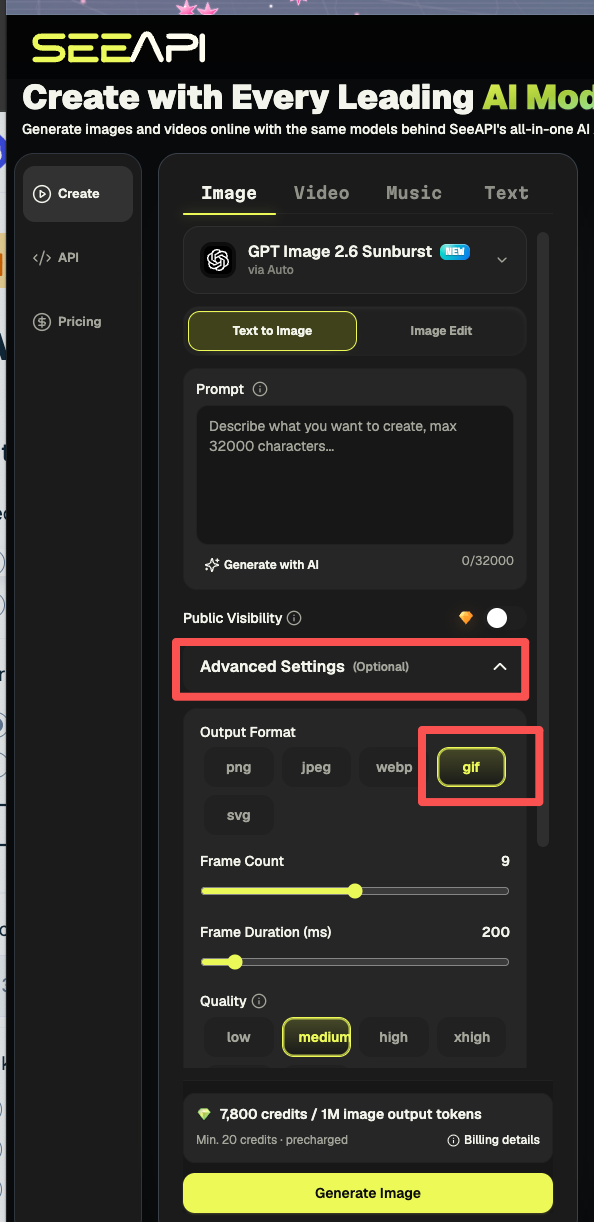
In Advanced Settings, select GIF before adjusting Frame Count and Frame Duration.
4. Set the Frames and Timing
The settings shown above use 9 frames and 200 ms per frame. That gives an approximately 1.8-second cycle, or five frames per second: 9 × 200 ÷ 1,000 = 1.8. It is a starting point for a simple, stepped animation, not a promise of smooth video-like motion.
Add frames when the action needs more intermediate positions. Increase the duration per frame to slow playback; decrease it to speed playback. If you add frames without changing their duration, the complete cycle becomes longer too.
SeeAPI's current default-provider documentation lists 2–16 GIF frames and 20–2,000 ms per frame for both models. Use the options available in your selected model and provider. The Sunburst documentation and Flare documentation describe the request-level controls; static-image resolution settings should not be treated as GIF dimensions.
5. Generate, Inspect, and Save
Review the displayed credit information, then click Generate Image. When the result is ready, preview several cycles and save the GIF result from the workspace.
Look closely at the transition from the last frame back to the first. Check that the subject stays recognizable, the background remains stable, and any text can be read at the size where you plan to share it. Change one thing at a time when refining the prompt or settings.
Three GIF Prompts to Try
A useful prompt describes a small action and its reset. These are starting prompts to adapt, rather than tested output examples.
A Custom Reaction GIF
A cheerful small orange robot faces the viewer on a plain charcoal background. It raises its right hand, waves once, then lowers the hand to its starting position. Keep the robot's design, scale, lighting, and background consistent across frames. Fixed camera, bold readable shapes, short looping animation, no text.A Product Detail Loop
A studio close-up of a simple ceramic mug on a warm beige surface. A small curl of steam rises above the mug, changes shape gently, and returns to a similar starting shape for a repeating loop. Keep the mug and camera completely still. Clean composition, soft light, simple background, no text or logo.An Illustrated Celebration
A friendly illustrated star gently squashes down, makes one small bounce, and settles back into its original shape and position. Flat colors, thick clean outlines, centered on a pale blue background. Keep the star's face consistent. Fixed camera, one clear action, seamless looping intent, no text.For a first attempt, avoid several moving characters, moving cameras, intricate text, and dramatic scene changes. Simplifying the motion makes it easier to judge what needs improvement. If a supposedly fixed background still shifts, shorten the action or use a simpler scene; a locked-camera instruction helps express your intent but does not guarantee identical pixels across frames.
How to Make a GIF From a Video
Use conversion when the moment already exists in a recording. It preserves the recorded action, while AI generation creates a new interpretation of your description.
A browser converter such as Ezgif's video-to-GIF tool provides a direct route:
Load your clip. Choose the video file you want to convert.
Trim one complete action. Set the start and end points around the useful moment. As an editing starting point, try roughly two to six seconds.
Set the output size and frame rate. Keep the subject readable at its intended display size. Lower the frame rate gradually if file size is a problem.
Convert and preview. Watch the loop, then save the GIF. Adjust the crop or timing if the important action disappears between frames.
A screen recording works especially well when it demonstrates one click or interface change. Crop out unrelated panels and keep the pointer easy to follow. If the clip depends on speech, music, or a long sequence of instructions, keep a video version instead.
How to Make a GIF From Photos
For a slideshow or stop-motion sequence, use an image-to-GIF maker such as Ezgif's animated GIF maker.
Add your images. Use two or more distinct frames. Photos taken from a consistent angle make movement easier to follow.
Arrange the order. Check the sequence rather than assuming upload order is correct. Match the canvas dimensions to avoid distracting jumps.
Set the delays. Use a shorter delay for motion and a longer delay for a photo or caption that needs reading time.
Create and save the GIF. Inspect the transition back to the opening frame. An intentional pause can help a slideshow feel complete.
Photo-to-GIF assembly displays the pictures you supply. It does not automatically invent natural movement between unrelated still images. For a single picture that should blink, wave, or move, you need an animation workflow rather than simply saving that picture with a .gif extension.
How to Make a GIF on iPhone
Apple's Shortcuts app includes a Make GIF action. Apple's Shortcuts user guide illustrates a sequence that gets photos, makes a GIF, and sends the result.
For a photo sequence, build a shortcut with Select Photos and enable multiple selection, add Make GIF, then add Save to Photo Album or a save/share action suited to your destination. Run it and select your frames. Action labels and available controls can vary by iOS version.
After saving, check that you have an animated file, rather than a screenshot or a still thumbnail. A looping preview inside one app does not establish how another app will handle it, so send yourself a test before sharing widely.
How to Keep a GIF Small and Clear
Large files and rough-looking colors are common frustrations. GIF uses indexed color with a maximum of 256 entries in each palette. Fine photographic gradients can become bands or a speckled texture when colors are reduced. MDN's image-format guide explains these constraints.
Make adjustments in a useful order:
Shorten the action. Remove frames that add no information.
Reduce the dimensions. Export for the space where the animation will appear, not for a full-screen preview.
Reduce the frame count or frame rate. Keep enough positions for the movement to remain understandable.
Simplify the image. A stable camera and less visual clutter are helpful starting choices.
Optimize color carefully. If your editor offers palette or dithering controls, compare a few versions. Less dithering can reduce speckles but make color bands more visible.
Reducing the delay per frame only makes playback faster; it does not remove frames or reliably solve file size. Also distinguish frame rate, measured in frames per second, from frame duration, measured in time per frame. At 200 ms per frame the rate is five fps; at 100 ms it is ten fps.
For long, detailed, or photographic motion, compare an MP4 or WebM export. Modern video formats can deliver a more practical result when color detail, sound, and file size matter more than an actual GIF file.
Common GIF Problems and Fixes
Problem | What to Check | A Useful Next Step |
|---|---|---|
The result appears still | File type, number of distinct frames, and the viewer | Open the saved |
The loop snaps back | Final pose differs from the first | Shorten or redesign the action so it returns to the start |
Motion feels choppy | Too few positions or long frame delays | Add useful frames or shorten delays, then recheck total duration |
The file is too large | Dimensions, length, and frame count | Reduce one setting at a time and compare the result |
Colors look dotty | Palette reduction and dithering | Simplify the scene or compare the editor's color options |
AI faces or backgrounds change | Too many simultaneous changes | Use one moving element and a simpler, fixed composition |
The GIF stops moving after upload | Destination conversion or preview behavior | Upload the original file and test in the destination app |
Frequently Asked Questions
Can I Make GIFs Without Recording a Video?
Yes. Arrange multiple photos or drawings as animation frames, or use an AI GIF generator to create a new scene from a prompt. Choose the approach based on whether you need to preserve existing images or invent new motion.
Can a GIF Have Sound?
A standard animated GIF has no audio track. If sound is part of the message, use a video format. A platform may call a looping video a GIF even when the delivered file is not a .gif.
Can I Make GIFs for Free?
Some conversion tools offer free workflows. AI generation may require credits or a paid plan, so check the selected tool's current terms and displayed cost. Do not assume that every GIF workflow on the same platform has the same price.
How Do I Make a GIF That Loops Smoothly?
Use a movement with a natural reset, such as a wave that returns the hand to rest. Keep the camera stable and compare the first and last frames. Repeating a file does not automatically make its visual transition seamless.
How Do I Use GIFs on Discord or Instagram?
Check the requirements for the specific placement, such as a message, custom emoji, sticker, or post. Those surfaces can have different formats and limits. A downloaded GIF is also separate from getting an animation listed in a platform's searchable GIF library.
Make Your First Loop
Choose one subject, one action, and one clear result. Convert a short clip when you already have footage, assemble photos when you have a sequence, or create a GIF from a prompt in SeeAPI when you want something original. Select GPT Image 2.6 Sunburst or GPT Image 2.6 Flare, open Advanced Settings, choose GIF, and inspect the finished loop before sharing.