Loading workspace...

GTA 6 Loading Screen Photo

Your Face, A Painted Coastal City, A Main-Character Moment

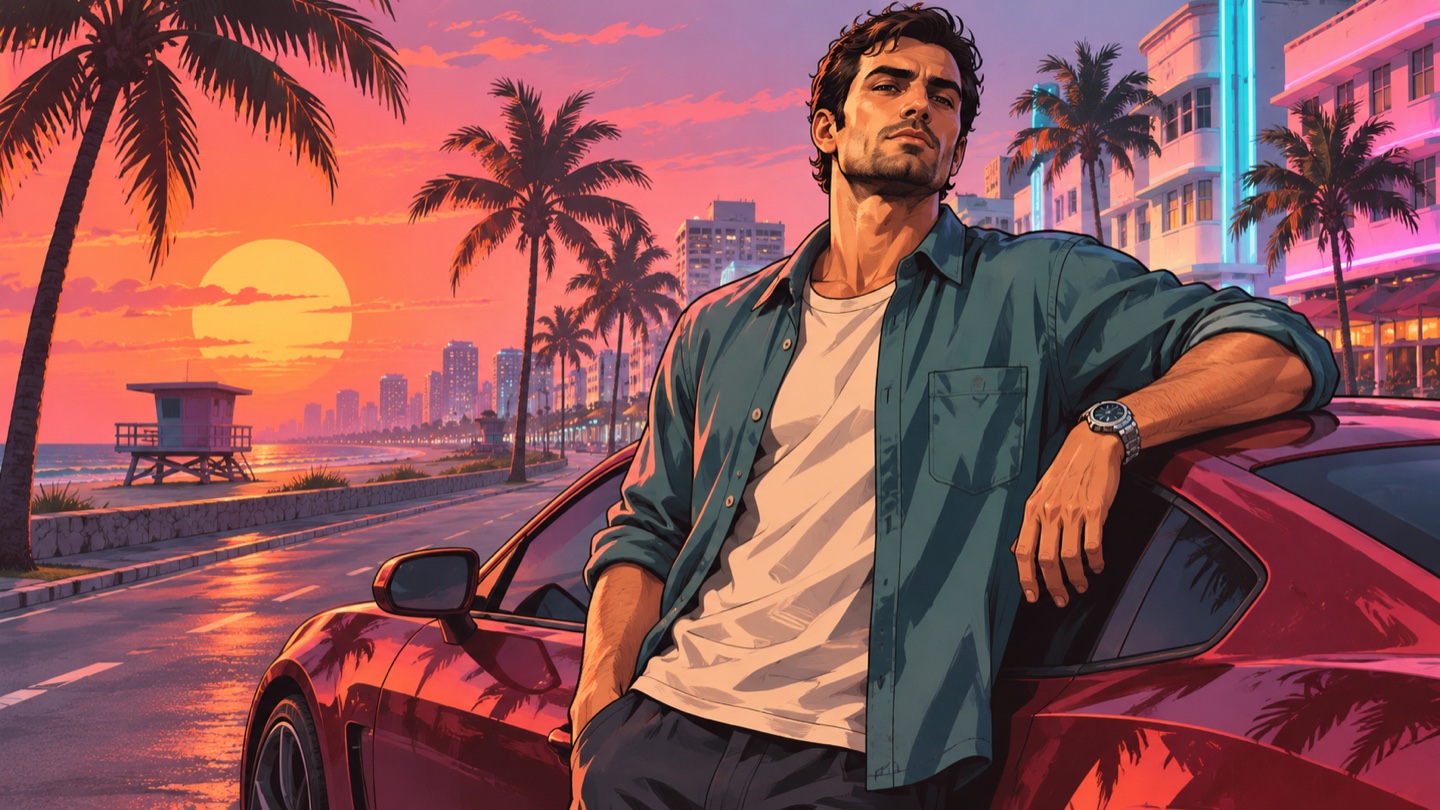
Turn a personal GTA 6 Loading Screen Photo reference into bold game-inspired artwork. GTA 6 Loading Screen Photo brings together ink outlines, painted shadows, tropical palms and sunset color around a character based on your picture. GTA 6 Loading Screen Generator gives you a focused starting point for a personal poster, avatar or wallpaper crop. GTA Loading Screen AI Photo is about a new illustrated composition, with your face as its reference. Illustrations are original concepts, not customer results or configured-model tests.

One Photo Input
Built-In Illustration Preset
Still Image Output
Hero image
GTA 6 Loading Screen Photo

How To Create GTA 6 Loading Screen Photo

Use a photo with one visible face. The illustration direction is already included, so you can concentrate on your starting picture. GTA 6 Loading Screen Generator includes the scene instruction for GTA Loading Screen AI Photo.

1

Upload One Photo

Choose a clear solo portrait with your face and shoulders visible. Upload it using the photo field above.

2

Generate Your Illustration

Start generation with the built-in preset. Wait for the finished image to appear in your results.

3

Review And Download

Open the result and check your face, clothing and hands. Download your favorite image before making any final social or wallpaper crop.

What Makes GTA 6 Loading Screen Photo Stand Out

GTA 6 Loading Screen Art combines a readable character with a setting that tells a story. These three directions explain what to look for in your own result.

Your Portrait, Reimagined In Painted Color

Your Portrait, Reimagined In Painted Color

GTA 6 Loading Screen Photo starts with the details that make a portrait yours: face shape, hairstyle, skin tone and the silhouette of your clothes. Those details guide your GTA 6 Loading Screen Photo character rather than a cutout pasted onto a background. GTA 6 Loading Screen Generator uses a preset for strong contours, painted light and a confident coastal-city composition. The goal is a face that remains readable as the rendering becomes more graphic.

For GTA Loading Screen AI Photo, a simple three-quarter pose gives the artist-like treatment room to work. Compare the eyes, jawline and hairline with your original after generation. GTA 6 Loading Screen Photo can reinterpret small accessories, fabric folds or expression, so choose the version that feels most familiar. GTA 6 Loading Screen Art works best when the portrait stays the focus and the car, palms and architecture support it without crowding the frame.

Plan A Phone Wallpaper Or Profile Crop

Plan A Phone Wallpaper Or Profile Crop

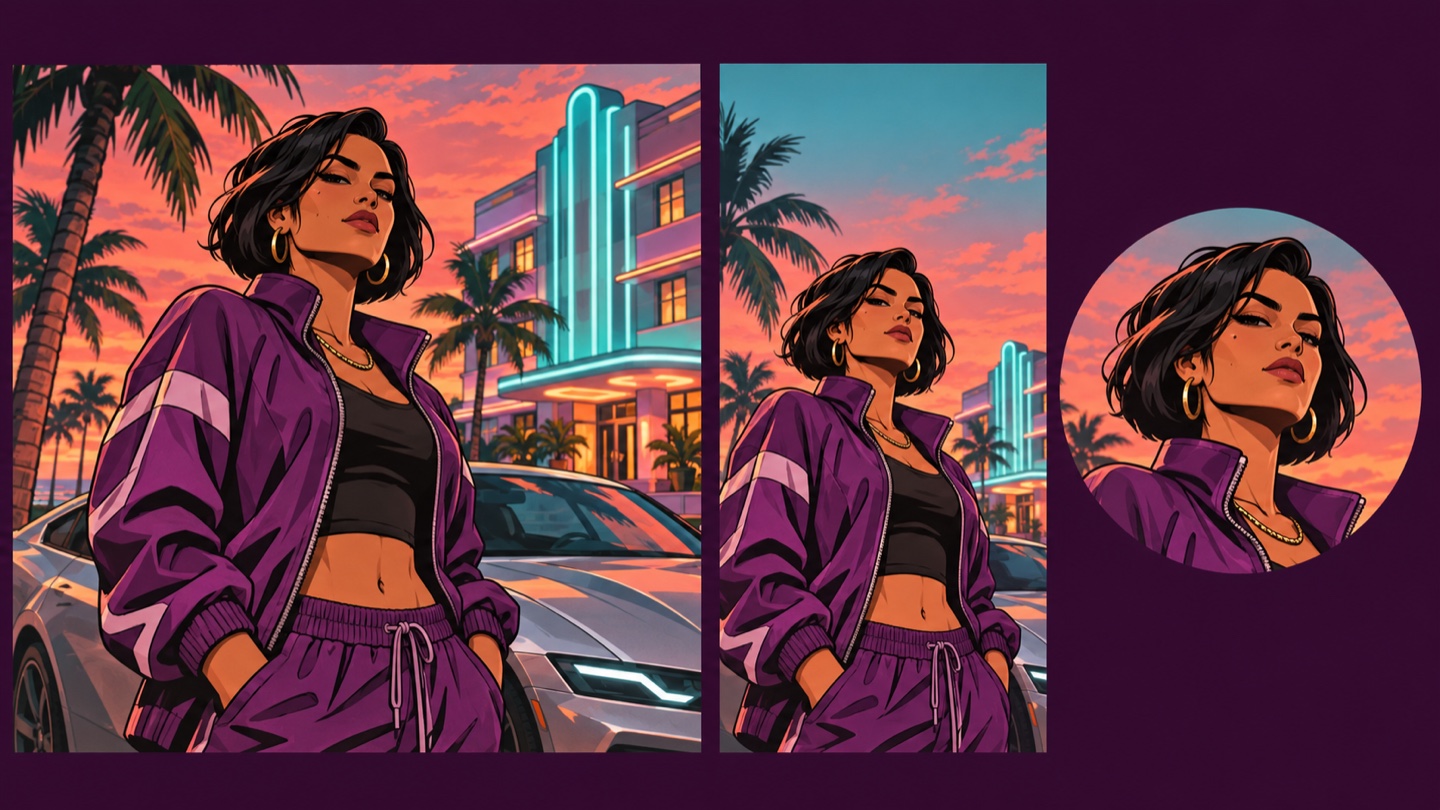
GTA 6 Loading Screen Photo can become the starting artwork for a phone background or a personal avatar. Each GTA 6 Loading Screen Photo destination needs different framing. A GTA 6 Phone Wallpaper benefits from open sky above the face, while an avatar needs a strong head-and-shoulders silhouette. Make A GTA 6 PFP by checking a square crop first and then previewing it inside a circle in your chosen editor.

GTA 6 Loading Screen Generator establishes the illustration; your final crop decides which details survive. GTA Loading Screen AI Photo should still read clearly when displayed small. Keep hair, chin and the brightest facial highlights away from the crop edge. GTA 6 Loading Screen Photo may need a separate crop for each destination rather than one file for every use. The concept board illustrates this distinction: a wider scene carries atmosphere, while the tighter crop gives the face more space and prominence.

Give Your Character A Complete Setting

Give Your Character A Complete Setting

GTA 6 Loading Screen Photo is more than a colored portrait. A low horizon, warm sky, silhouetted palms and a generic sports car can suggest a whole coastal-city story in one frame. GTA 6 Loading Screen Art uses light and scale to connect the foreground character with the environment. Wide GTA 6 Loading Screen Photo compositions leave more space for architecture and atmosphere; tighter ones feel more personal.

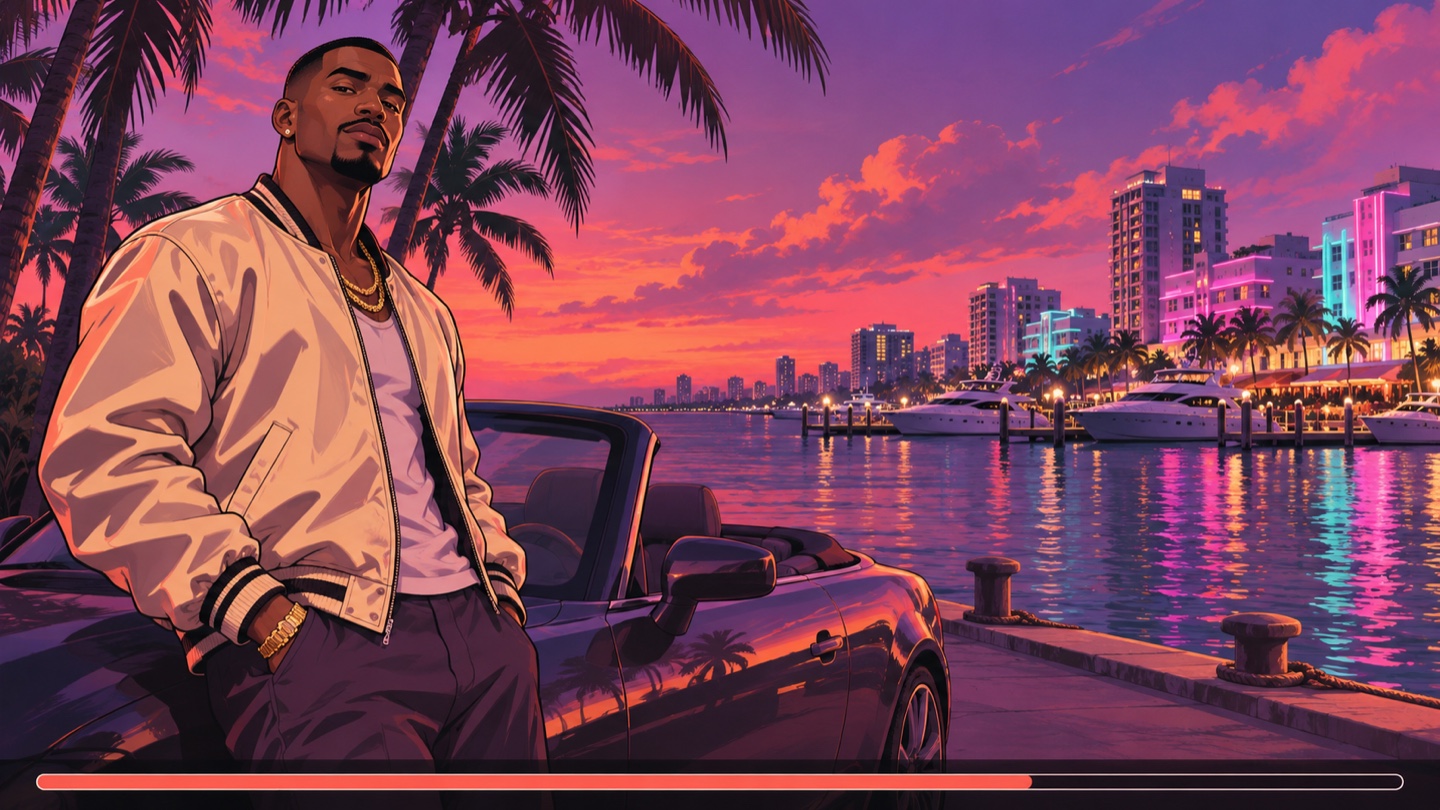
GTA 6 Loading Screen Generator supplies the scene direction without requiring a location photo. GTA Loading Screen AI Photo reimagines the background, so an ordinary indoor portrait can still be a useful reference. GTA 6 Loading Screen Photo remains a still illustration. A decorative loading bar, if present, is part of the picture rather than an interactive game interface. For precise bar placement or readable captions, finish those elements in an editor. Keep the main face unobstructed and let the skyline stay secondary.

Choose A Better Starting Photo

GTA 6 Loading Screen Photo depends on a clear visual reference.

Let The Face Carry The Reference

Choose even light and an unobstructed face for GTA 6 Loading Screen Photo. GTA Loading Screen AI Photo turns fine photographic texture into broader painted shapes, so GTA 6 Loading Screen Photo benefits from distinctive hair, eyebrows and clear facial proportions. GTA 6 Loading Screen Generator can create a new setting; your reference should make the person easy to identify.

Leave Room Around Your Shoulders

A waist-up photo gives GTA 6 Loading Screen Photo room to establish posture and clothing. GTA Loading Screen AI Photo may infer areas outside your GTA 6 Loading Screen Photo reference frame, which can introduce unfamiliar details into GTA 6 Loading Screen Photo. For a GTA 6 Loading Screen Photo you intend to crop later, visible upper-body space is useful. GTA 6 Loading Screen Generator is easier to evaluate when you can compare a familiar jacket, collar or stance.

Keep One Clear Subject

Use one person for GTA 6 Loading Screen Photo. GTA 6 Loading Screen Photo is configured for a solo portrait, so a group picture creates an unnecessary choice about which face to follow. GTA Loading Screen AI Photo should have a clear identity reference. GTA 6 Loading Screen Generator does not need your original background to resemble a beach or city; choose clarity over scenery when selecting the picture. GTA Loading Screen AI Photo does not require a separate picture of a car or a coastal street.

Review Details Before You Share

Open GTA 6 Loading Screen Photo at a comfortable viewing size. Check the eyes, teeth, hands, jewelry and any vehicle details. GTA Loading Screen AI Photo can simplify or invent small elements, so a strong overall composition still needs a close look at GTA 6 Loading Screen Photo. GTA 6 Loading Screen Generator provides an illustration, and your final selection should suit your GTA 6 Loading Screen Photo project.

Put GTA 6 Loading Screen Photo To Work

GTA 6 Loading Screen Photo can support several personal creative projects without requiring the same layout for every one.

Create A Personal Phone Background

Turn your photo into a GTA poster, then frame it for your phone. Use GTA 6 Loading Screen Photo as the artwork for a GTA 6 Phone Wallpaper. Preview the image behind your actual lock-screen clock before deciding where to crop. In GTA 6 Loading Screen Photo, a busy skyline near the top can compete with numbers and notifications, while open sky gives them breathing room. GTA Loading Screen AI Photo benefits from a face positioned away from those overlays. GTA 6 Loading Screen Generator creates the scene; your wallpaper settings determine the final display. GTA 6 Phone Wallpaper usually needs a tall composition with room for the clock and notifications. GTA Loading Screen AI Photo may need a different crop from an avatar.

Make A Recognizable Gaming Avatar

Turn your photo into a GTA poster that reads clearly at avatar size. Make A GTA 6 PFP with GTA 6 Loading Screen Photo when you want a gaming profile that still feels like you. For GTA 6 Loading Screen Photo, keep the eyes and hair easy to recognize at thumbnail size. GTA Loading Screen AI Photo does not need a crowded city backdrop in a tiny circle; a clean area of color may work better. GTA 6 Loading Screen Generator supplies your illustrated portrait, then a square crop helps isolate it. Make A GTA 6 PFP by choosing GTA 6 Loading Screen Photo with a clear face, then testing a square and circular crop. GTA 6 Loading Screen Generator is a starting point for that illustrated identity.

Build A Photo-Reveal Social Post

Turn your photo into a GTA poster for the second frame of a reveal. Pair your original picture with GTA 6 Loading Screen Photo in a carousel or a simple two-frame edit. Keep the face at a similar height in your source and GTA 6 Loading Screen Photo so the change is easy to follow. GTA Loading Screen AI Photo becomes the reveal, while the original provides context. GTA 6 Loading Screen Generator produces a still image; transitions, music and video timing belong in your editing app. Add a personal caption rather than suggesting GTA 6 Loading Screen Photo is an official game asset.

Design A Desktop Or Channel Visual

Turn your photo into a GTA poster with room for your desktop icons. GTA 6 Loading Screen Photo can anchor a personal desktop background or a gaming-channel graphic. Choose a wide crop with breathing room for desktop icons or a separate headline. GTA 6 Loading Screen Art looks stronger when architecture and sky frame the subject instead of intersecting the face. GTA Loading Screen AI Photo gives you a painted visual to build around. GTA 6 Loading Screen Generator does not replace a layout editor: preview GTA 6 Loading Screen Photo at its destination, then add your own typography if needed.

Before You Generate GTA 6 Loading Screen Photo

Understand your output and check access before starting.

Check Your Likeness

GTA 6 Loading Screen Photo uses the uploaded image to guide your likeness and outfit. GTA Loading Screen AI Photo should be reviewed against your GTA 6 Loading Screen Photo reference before you share it. GTA 6 Loading Screen Generator works from the information visible in your picture; a sharp face is more useful than a distant full-body shot.

Understand The Still Image

GTA 6 Loading Screen Photo produces a still picture. GTA 6 Loading Screen Art can suggest a loading-screen layout without tiny tip text. GTA Loading Screen AI Photo is easier to finish when precise lettering is added separately. Use an editor if you want exact progress, readable captions or motion. GTA 6 Loading Screen Generator is not a gameplay recorder, animation tool or game modification. GTA Loading Screen AI Photo should be shared as your own AI illustration. GTA 6 Loading Screen Generator uses the name to describe an art direction; it does not provide official game screenshots, assets or characters.

Check Access And Cost

Check the generation controls and your account for the current model, available access and any applicable credit cost before you submit GTA 6 Loading Screen Photo. GTA 6 Loading Screen Generator uses the selected image model, and availability can depend on your account. Upload a photo you own or have permission to edit. Save GTA 6 Loading Screen Photo only after reviewing the result, and check the destination crop before printing or sharing. GTA 6 Loading Screen Generator is set up around that single-photo workflow.

GTA 6 Loading Screen Photo Questions

Practical answers about the preset, photo choice, framing and finishing your picture. GTA Loading Screen AI Photo starts with your reference.

GTA 6 Loading Screen Photo is a photo-based illustration effect inspired by the painted character art associated with open-world crime-game loading screens. GTA 6 Loading Screen Generator uses your portrait as the identity reference and a built-in instruction for the visual treatment. GTA Loading Screen AI Photo creates a new illustration, not a capture from the game. Expect bold outlines, painted shadows and a tropical city atmosphere.

From One Portrait

Create Your GTA 6 Loading Screen Photo

Pick a clear photo and give your next personal portrait a painted coastal-city setting. Start with GTA 6 Loading Screen Photo, review the details, and choose the crop that suits your project. Make A GTA 6 PFP or plan a GTA 6 Phone Wallpaper from the image you keep.

Solo Photo Preset
Painted Character Art
Review Before Sharing