
Loading workspace...
Gemini Omni 1.2 Flash

Gemini Omni 1.2 Flash Video Generator

Give Your Next Video A Clear Creative Direction

Develop your next shot with the Gemini Omni video generator. Plan a product reveal, a character moment, or a moving scene around the subject, action, camera, and final impression. This page explores Gemini Omni 1.2 Flash and practical ways to brief your next project. The current SeeAPI workspace uses Gemini Omni Flash 1.1; generation follows that version's available controls. Use the Gemini Omni video generator to develop your idea, then check the selected model and settings before starting.

Gemini Omni 1.2 Flash Video Generator
Explore The 1.2 Creative Workflow|Start With Text Or Image References|Current Workspace: Gemini Omni Flash 1.1

What Changes With Gemini Omni 1.2 Flash

Google's 1.2 release focuses on longer clips, reference following, and iterative editing. Use these changes to plan a Gemini Omni video generator project around a clear creative goal. Availability in this workspace follows the selected 1.1 model. Concept illustrations show creative directions.

Build A Complete Short Scene

Build A Complete Short Scene

Google reports native generation and editing from 3 to 15 seconds, selectable in one-second increments. For a Gemini Omni video generator brief, divide the idea into an opening, a main action, and a readable ending. A coffee reveal might begin with steam and finish with a hand lifting the cup. Use the Gemini Omni video generator planning process to decide what belongs inside the shot before adding secondary action.


Make References Work Together

Make References Work Together

The 1.2 announcement highlights stronger adherence to character, product, and style references, alongside short motion clips and audio cues. Prepare a Gemini Omni video generator brief with one clearly stated role for each reference. Separate the product's shape from the mood of the lighting, so visual directions do not compete. Remove unrelated or contradictory images. For the current Gemini Omni video generator workspace, use its supported image inputs; video and audio uploads are unavailable here.

Refine A Specific Creative Choice

Refine A Specific Creative Choice

Google describes conversational editing for changes such as backgrounds, lighting, and aspect ratio. Plan Gemini Omni video generator revisions around one decision at a time: a warmer room, a quieter background, or a different presentation format. Write down what should stay constant alongside what should change. That makes the next review more useful than a broad request to improve everything. Treat this Gemini Omni video generator guidance as preparation for 1.2 editing, rather than an editing control currently offered by this form.

Direct The Camera With Purpose

Direct The Camera With Purpose

Google also highlights more controlled continuous camera movement and improved scene consistency. Give a Gemini Omni video generator shot one camera idea, such as a slow push or a gradual product orbit. Describe the starting composition and the intended finish. Avoid combining a fast zoom, a wide orbit, and a sudden cut without a narrative reason. The Gemini Omni video generator brief becomes easier to evaluate when the movement reveals something useful about the scene.

How To Start Your Video On SeeAPI

Use the Gemini Omni video generator workspace above to move from a written idea to a reviewable result. The active model is Gemini Omni Flash 1.1, with text, image, and image-reference input modes.

1

1. Choose One Outcome

Decide what viewers should notice first and remember last. For a Gemini Omni video generator project, that might be a product silhouette, a character's reaction, or the atmosphere of a place. Keep the first brief focused on a single shot. Note the intended placement and any space needed for captions added later. This gives you a practical standard for judging the result instead of relying on a vague feeling that the clip looks cinematic.

2

2. Write Or Add Your Starting Material

Enter a scene description, or choose an available image input mode and add clear references. The workspace permits up to seven images; a smaller, coherent set can be easier to direct. In a Gemini Omni video generator prompt, identify the main subject, the setting, and one visible action. Use images you have permission to upload. Crop distracting margins and choose references that show the features you actually need to preserve.

3

3. Check The Selected Settings

Review the model name, available output settings, and displayed cost before submitting. Keep duration and output choices within the active model's controls. The Gemini Omni video generator page discusses the newer release, but this workspace remains bound to 1.1. Do not assume that a capability described below appears in the current form. Start with a manageable experiment whose result can answer one specific creative question.

4

4. Review And Revise Deliberately

Watch the entire result, then inspect the opening, the main action, and the final frame. Check subject identity, unwanted motion, framing, and the clarity of the intended message. With the Gemini Omni video generator, revise the prompt or references according to the issue you can actually see. Record the changes to guide your next edit.

Find A Useful Starting Point For Your Next Video

Choose a task with a visible result. These Gemini Omni video generator concepts are creative briefs you can adapt, rather than examples of completed customer projects.

Product Reveals With A Clear Focal Point

Brief the Gemini Omni video generator around a single product and a deliberate reveal. Show a ceramic lamp emerging from shadow, a skincare bottle catching window light, or a shoe turning against a simple studio background. Specify the material, the camera distance, and the detail that deserves attention. Keep packaging copy and exact legal text for your finishing workflow. A useful Gemini Omni video generator review asks if the product remains recognizable and if the movement supports the buying message.

Social Concepts That Read Immediately

Build a Gemini Omni video generator concept around an opening people can understand without a long explanation. A tiny greenhouse unfolding on a desk offers a clear subject and a change worth watching. Leave room for a headline added in your editor, and decide where the viewer's eye should land. For a Gemini Omni video generator campaign test, vary one creative element across attempts, such as the setting or reveal, while keeping the central idea stable.

Story Moments With A Readable Action

Give the Gemini Omni video generator a character with one understandable objective: finding a glowing key, opening a mysterious parcel, or noticing a visitor at the door. Describe the action through visible behavior instead of an abstract emotion alone. A pause, a glance, and a hand movement can communicate anticipation. Use the Gemini Omni video generator brief to establish where the character starts, what changes, and what the audience should understand at the end.

Atmospheric Scenes For Creative Exploration

Use the Gemini Omni video generator to explore a location through a coherent camera path. Imagine a rain-soaked arcade, a quiet desert observatory, or a miniature garden inside a glass vessel. Identify the foreground, the focal subject, and the background movement. Keep environmental effects connected to the scene: rain darkens surfaces, wind moves fabric, and light follows a visible source. A Gemini Omni video generator scene feels more intentional when each detail serves the same atmosphere.

Write A Brief That Gives You Something To Review

A useful Gemini Omni video generator prompt describes observable choices. Adapt these Gemini Omni video generator examples to your own subject and action.

Product Reveal

Try this Gemini Omni video generator brief: A matte green travel mug stands on a pale stone counter beside a window. Morning light slides across the curved handle as the camera slowly moves closer. A small ribbon of steam rises from the lid. Keep the background simple and finish with the full mug visible. Adapt this Gemini Omni video generator prompt, then review the product's shape and material.

Story Discovery

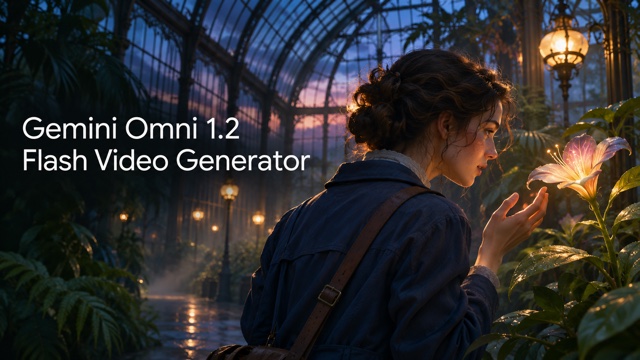
Build a Gemini Omni video generator scene from a visible event: A young botanist in a blue coat enters a greenhouse at dusk and notices a softly glowing flower. The camera follows at shoulder height as the botanist stops and gently leans closer. Leaves move slightly in the open doorway's breeze. End on the reaction and the flower together. This brief gives you specific action, framing, and environmental behavior to assess.

Focused Revision

For a Gemini Omni video generator revision plan, write a precise request: Keep the subject's position and the slow camera approach. Reduce background movement so the main action reads more clearly. Preserve the original color palette.

Review Your Changes

Use this as a checklist when adjusting a prompt for another attempt. In a supported 1.2 editing environment, the same structure can guide a follow-up edit without introducing several unrelated changes at once.

Gemini Omni video generator Questions

Check the active version, inputs, and project requirements before you generate.

The Gemini Omni video generator workspace currently uses Gemini Omni Flash 1.1. This page introduces the 1.2 release and its creative workflows. Available inputs, output settings, and billing follow the selected 1.1 model. The page title does not change the generation model.

Plan The Shot. Review The Result.

Give Your Next Video Idea A Clear Starting Point

Start with one subject, one action, and one camera direction. Bring a focused brief to the Gemini Omni video generator and check the active 1.1 settings before you submit. Explore the 1.2 workflow as you plan future projects, then use each Gemini Omni video generator attempt to answer a specific creative question.