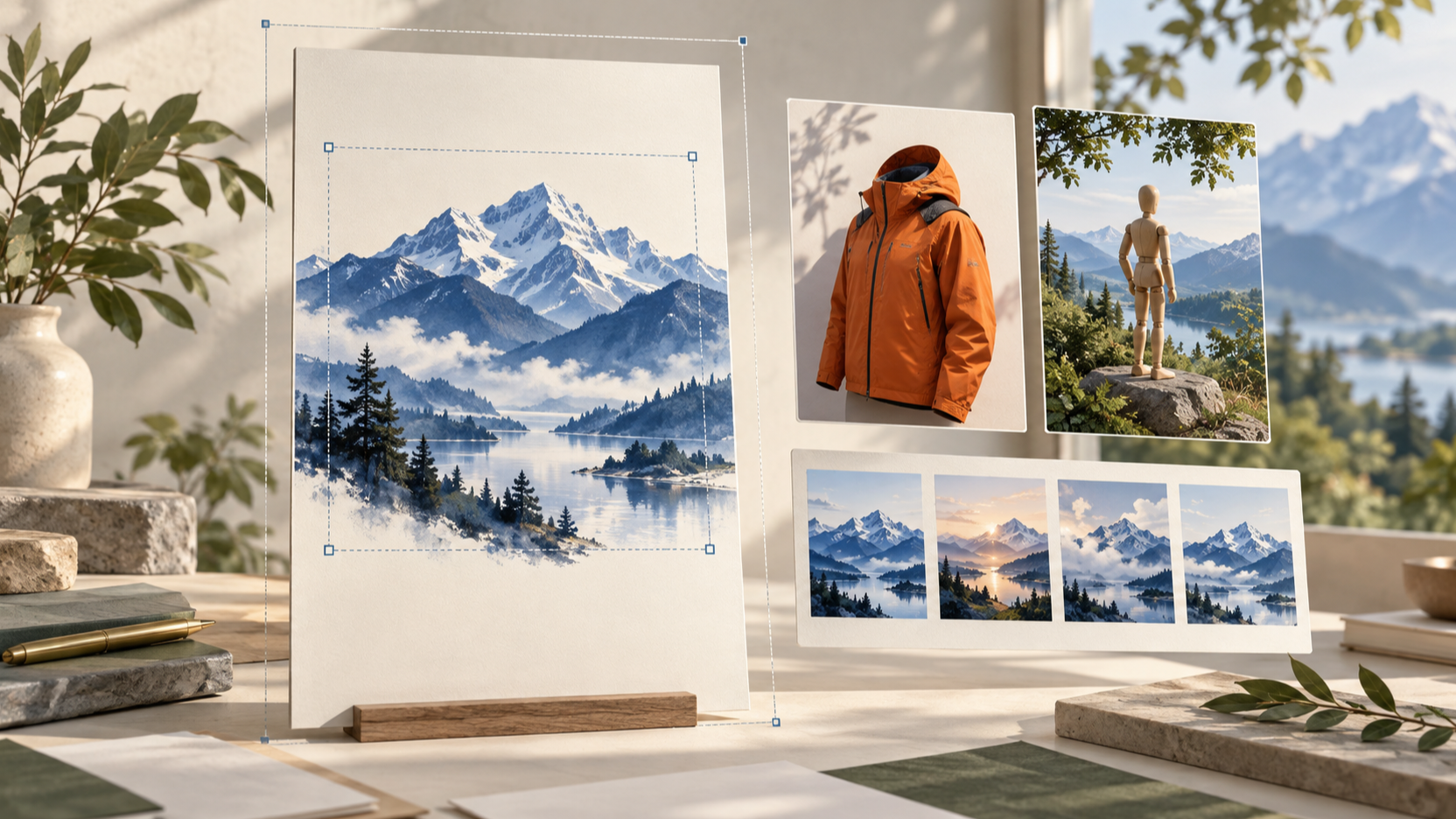
MOSS-Image becomes interesting when you have a job for it: a poster with readable copy, a product photo that needs a new color, or a scene whose composition keeps drifting. Its growing ecosystem gives you several routes to tackle those problems.
This guide explains the attention, then walks through four useful starting points. The instructions follow developer documentation; the prompts are suggested tests, not claimed hands-on results.
Why MOSS-Image Is Gaining Attention
Released on October 16, OpenMOSS's MOSS-Image family combines a 5B image-generation backbone, English and Chinese text rendering, and structured layout prompts. Base and the supervised fine-tuned SFT version share an inference interface. Apache-2.0 weights make customization accessible.
The download headline needs context. On October 27, the Comfy-Org distribution displayed 2,442,344 downloads in the last month. That repository packages files for ComfyUI. It is a distribution signal, not a count of unique creators: Hugging Face's methodology counts requests to designated files.
My reading is that adoption benefits from the combination: useful text and composition controls, a familiar ComfyUI entry point, and developers adding capabilities around the same foundation. Downloads alone cannot establish superior image quality.
For a creator, those strengths solve different problems. Text rendering lets you explore the image and its message together. Layout prompts let you express where elements belong. Community adapters extend the workflow to existing photos or more specific scene constraints. A compelling reason to experiment is having a route to the next revision after the first image.
That also explains why the ecosystem deserves attention alongside the checkpoint. A downloadable workflow can turn an interesting capability into a task someone can attempt with their own inputs. The four routes below have different requirements, so choose by the result you need.
Choose Your First Workflow
Your Goal | Starting Point | Extra Input |
|---|---|---|
Arrange a poster | Native layout generation | JSON with element boxes |
Change an existing photo | Community MOSS Image Edit | Source image and edit patch |
Control a scene's placement and depth | Community Color-Depth Control | Region map, depth map, regional prompts |
Explore ideas faster | Community rapid-moss | SFT and the dedicated four-step components |
Set Up One Working Baseline First
If you only want to explore text and layout, use the browser demo linked below before downloading local weights. For editing and advanced community workflows, begin with a working local text-to-image setup and add one extension at a time.
The Comfy-Org file bundle separates the diffusion model, text encoder, and VAE. For a straightforward SFT starting point, its file list includes:
Component | Example File | ComfyUI Folder |
|---|---|---|
Image model |
|
|
Text encoder |
|
|
VAE |
|
|
These are component choices, not a minimum hardware specification. The 5B label describes the image backbone; it does not describe the whole pipeline's memory needs. Check your chosen workflow's file selections before downloading, especially if selecting quantized alternatives.
Generate one simple image and save the workflow before installing editing or acceleration nodes. If an extension later fails, that saved baseline helps you identify what changed.
Four Practical MOSS-Image Workflows
1. Build a Poster With a Layout Prompt
Use it for: event graphics, title cards, or a campaign concept where the headline and illustration need separate space.
Start in the official browser demo. Set a 1024 × 1024 canvas and paste this JSON into the prompt field:
{
  "summary": {
    "meta": ["poster"],
    "canvas": "single",
    "caption": "A cream travel poster with the title WEEKEND ESCAPE above a blue mountain illustration."
  },
  "items": [
    {
      "label": "text",
      "caption": "Large dark-blue uppercase heading.",
      "text": "WEEKEND ESCAPE",
      "bbox": [-416, -440, -272, 440]
    },
    {
      "label": "object",
      "caption": "A flat blue mountain illustration.",
      "bbox": [-160, -352, 384, 352]
    }
  ],
  "bbox_coord_space": "abs_centralized",
  "bbox_format": "yxyx"
}
The layout specification orders boxes as [top, left, bottom, right], measured from the canvas center. On this canvas, each axis runs from −512 to +512. Move the title by changing its box; keep the canvas dimensions consistent.

The example's input layout, showing the intended title and illustration regions.
Check spelling, clipping, and separation before changing the design. Layout control is experimental, so treat boxes as guidance and inspect the output.
For a useful second test, change only the mountain caption to A flat illustration of a green forested valley. Keep the title and boxes. Then try moving the title lower by adding 64 to its top and bottom values. These two revisions test content changes and placement separately. If you change both at once, it becomes harder to tell which instruction the model followed.
Prefer local generation? Update ComfyUI to a build with MOSS support, then import the native layout workflow. The official setup guide specifies diffusion weights in models/diffusion_models/, the text encoder in models/text_encoders/, and the VAE in models/vae/. Select CLIP type moss_image. Import the matching workflow rather than combining native loaders with an older plugin graph.
2. Make a Focused Photo Edit
Use it for: testing a jacket color, changing a season, or exploring lighting while retaining the source composition.
chinoll's MOSS Image Edit adds editing through a LoRA, a separately trained adaptation. The original text-to-image checkpoint alone does not provide this workflow.
Follow the author's ComfyUI installation guide and single-reference workflow. Start with SFT. For that plugin workflow, the published edit patch goes in models/model_patches/ and loads through Load Model Patch. Keep the author's patch format and workflow together; converted LoRA files can require different loaders.
Upload a jacket photo and try:
Change only the jacket fabric from black to burnt orange.
Keep the jacket's cut, zipper, pockets, person, pose,
background, and lighting unchanged.
Compare seams, hands, and background details against the original. Keeping a detail in the instruction gives you a clear inspection target; it does not guarantee preservation. Add multiple references only after the single-image route works, and describe each reference's role.
For example, in the author's multi-reference workflow, try a person photo as image 1 and a garment reference as image 2:
Use image 1 for the person, pose, framing, and background.
Use image 2 only as the reference for the jacket's cut and color.
Dress the person from image 1 in that jacket.
Preserve their face and the original scene lighting.
Treat this as a harder test. The plugin author specifically flags current multi-image LoRA quality for evaluation. Check that the result has not borrowed the second image's person or background along with the garment.
3. Turn a Rough Scene Into a Controlled Composition
Use it for: placing two people, planning foreground/background relationships, or developing a scene from a 3D blocking sketch.
darask0's Color-Depth Control adapter accepts a color map identifying regions and a depth map describing distance. Its author provides example maps and a Hayate reference implementation.
Begin with the supplied examples/two-people/ scene. Update local file paths in regions.json, select moss-control.safetensors, and describe each colored region separately. The colors identify regions; they do not prescribe clothing colors.
For synthetic mannequin inputs, the author recommends color_end: 0.5 and depth_end: 0.5, allowing later generation to finish the surfaces. Full-duration control can preserve a mannequin appearance. Pose precision remains coarse, especially fingers and facial details. This is an advanced community route with limited published evaluation.
4. Generate Faster Drafts With rapid-moss
Use it for: exploring directions before spending time on a final image.
The rapid-moss four-step adapter targets MOSS-Image-SFT. Install its comfyui/rapid-moss/ nodes and use the supplied rapid-moss-4step-native.json workflow. Download all three components: lora.safetensors, time_embedding.safetensors, and dataspace.safetensors.
Place those three files together in ComfyUI/models/rapid_moss/rapid-moss-4step/ and select that adapter directory in the supplied graph.
Keep its dedicated sampler, four steps, and CFG-free guidance. Do not substitute ordinary Euler sampling or fuse the adapter into BF16 weights. The author's instructions require these components together.
Use the mountain-poster prompt to compare drafts. Inspect small lettering and unwanted objects: the author documents regressions in both. Fewer steps are useful only if the result still meets your brief.
Give MOSS-Image a Real Acceptance Test
Choose one task and write down three requirements before generating: exact headline, correct object placement, and acceptable preservation of reference details. Compare several outputs using those same criteria.
Test | What to Inspect | What a Failure Tells You |
|---|---|---|
Poster text | Every letter, line break, and margin | Shorten or separate the copy before adding more design detail |
Layout revision | Only the requested element should move | Simplify overlapping boxes and test one position change |
Jacket edit | Color changes while seams, face, and setting remain acceptable | Narrow the edit instruction and compare against the source |
Fast draft | Same brief, acceptable details, actual elapsed time | Judge usable output rather than step count alone |
Keep a small contact sheet and label each image with its model, adapter, workflow, and seed. Use several seeds to see whether success repeats. When comparing full and accelerated generation, use the same prompt and dimensions, but judge whether each meets the brief; identical seeds need not produce matching pictures across different sampling paths.
Fix the Workflow Before Rewriting the Prompt
Symptom | First Check |
|---|---|
The CLIP loader has no | Update ComfyUI itself and its matching dependencies using the official setup guide |
An imported graph asks for missing loader nodes | Confirm that you imported the native or plugin workflow matching your installation |
The edit adapter will not load | Check whether you downloaded the original model patch or a converted LoRA |
rapid-moss looks wrong despite four steps | Restore its supplied nodes, all three components, and dedicated sampling path |
The workflow authors' linked guides are the source of truth when node names or file formats change. Once the graph runs correctly, improve the creative input one variable at a time.
For a first session, start with the layout example; add editing, scene control, or acceleration when your task needs it. MOSS-Image's appeal is the range of experiments its ecosystem makes possible. The useful result is finding a workflow you can repeat with your own assets.